Snapped
Draw your own window layouts on macOS and Windows. Create desktop hotspots, hold Shift while dragging a window, and snap it into place.
What it does
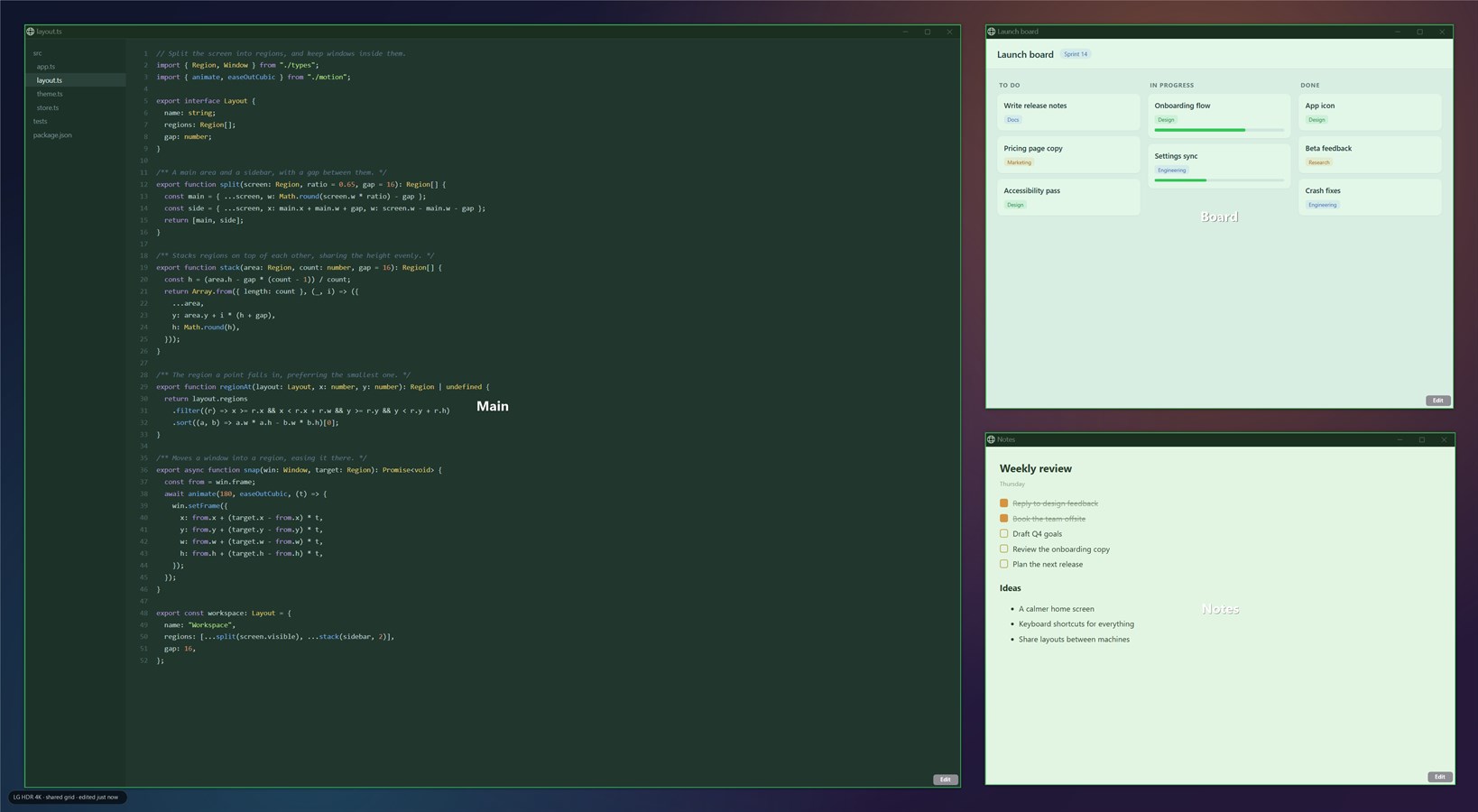
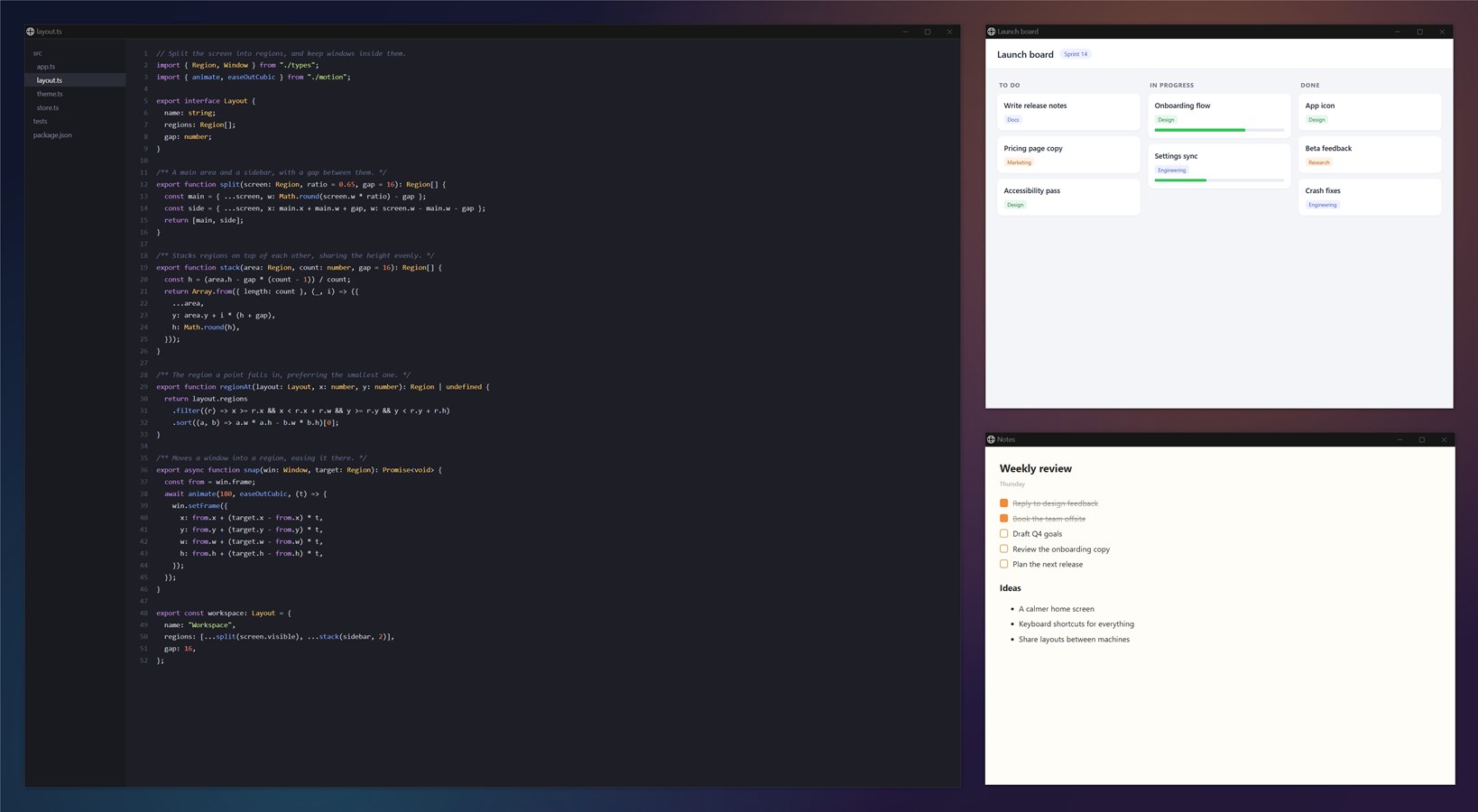
Draw hotspots anywhere on your desktop – any size, even overlapping. Hold Shift while dragging a window to reveal them, then drop it into place. Drag it back out to restore its previous size.
Save different layouts for each display and desktop, and take them between Mac and Windows. Keyboard shortcuts are supported too. Focus mode dims other windows so you can concentrate – on both macOS and Windows.
How it was built
Most window managers start with a fixed grid. I wanted the opposite: layouts that adapt to how I work, rather than the other way around. So Snapped lets you draw and edit hotspots directly on the desktop – no coordinates, configuration files or preset shapes to work around.
The tricky part is making a window manager stay out of the way. An ordinary drag should still be an ordinary drag, so snapping only activates when you hold Shift. Pull a snapped window back out and it returns to its previous size. Layouts are saved for each display and desktop, and can be moved between Mac and Windows. On macOS, Accessibility permission is only used to move and resize windows, not read their contents.
Status
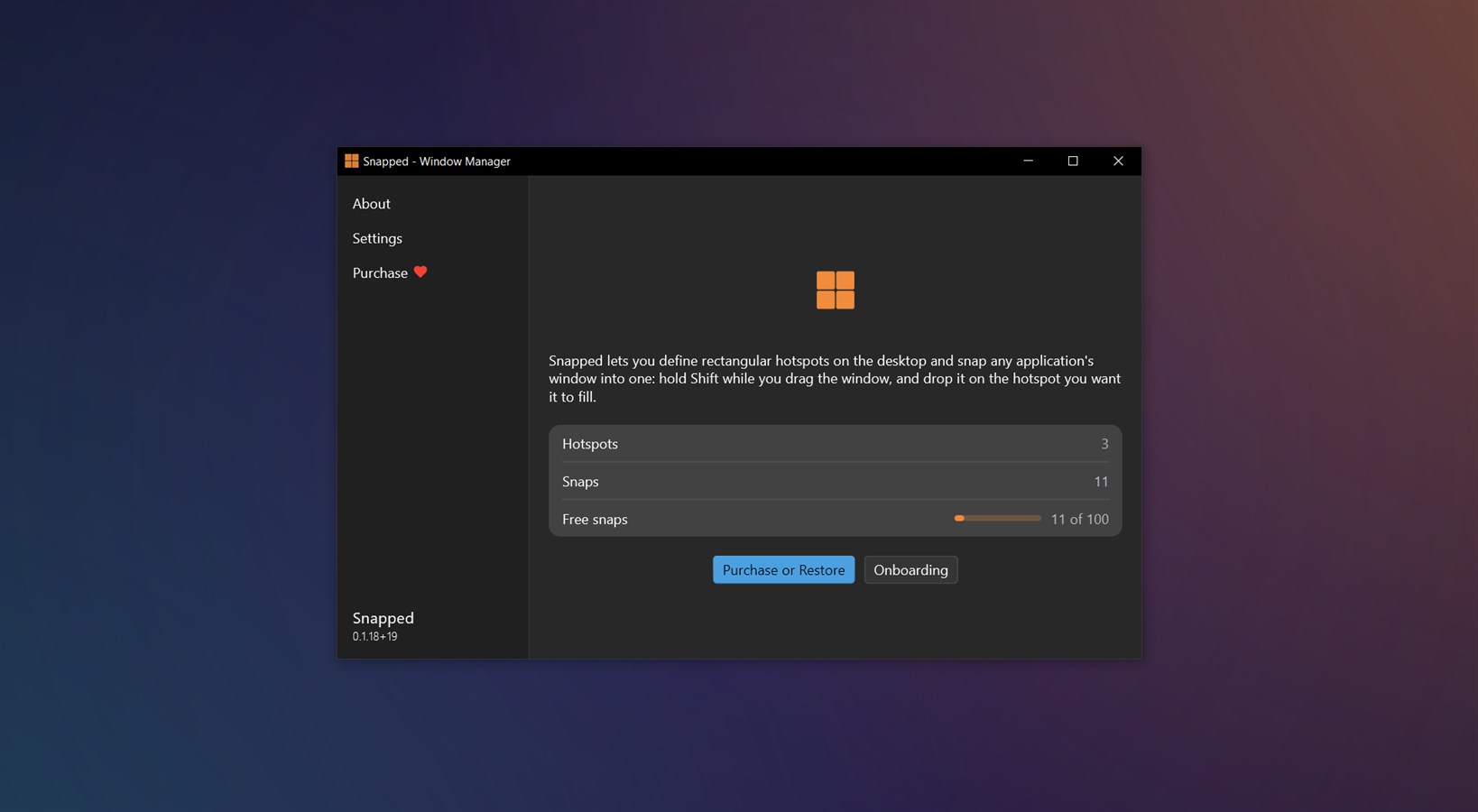
Available now. Free for the first 100 snaps, or $4.99 once for unlimited snaps with Pro.
Platforms
macOS – Download Snapped directly, or install it with Homebrew:
brew install --cask tompodab/tap/snappedWindows – Get Snapped from the Microsoft Store.
Need support? Visit our support page, or see the portfolio.